
Find Help
More Items From Ergsy search
-
What settings should I regularly review for security?
Relevance: 100%
-
What is the first step to securing my mobile phone?
Relevance: 64%
-

How secure is the Ring Doorbell Camera system?
Relevance: 61%
-
How should I secure my mobile phone?
Relevance: 61%
-
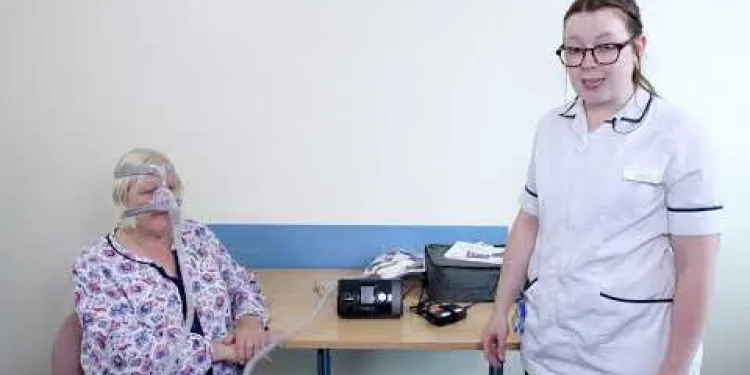
How to set up your CPAP machine
Relevance: 60%
-
Is redirecting a security camera a solution?
Relevance: 60%
-
Are there any tools provided by social media platforms to increase security?
Relevance: 58%
-

How do I secure my online accounts?
Relevance: 58%
-

Frozen Shoulder Scapular Setting
Relevance: 58%
-

Can drink spiking occur in private settings?
Relevance: 57%

-
How to Set Up a Lasting Power of Attorney
Relevance: 57%
-
How can I secure sensitive data stored on my phone?
Relevance: 57%
-
How can I secure my email after a hack?
Relevance: 55%
-
How can I secure my phone's internet connection?
Relevance: 55%
-
Will changing my password secure my hacked account?
Relevance: 55%
-
Is job security a right for gig workers?
Relevance: 55%
-
How can I keep my apps secure?
Relevance: 55%
-
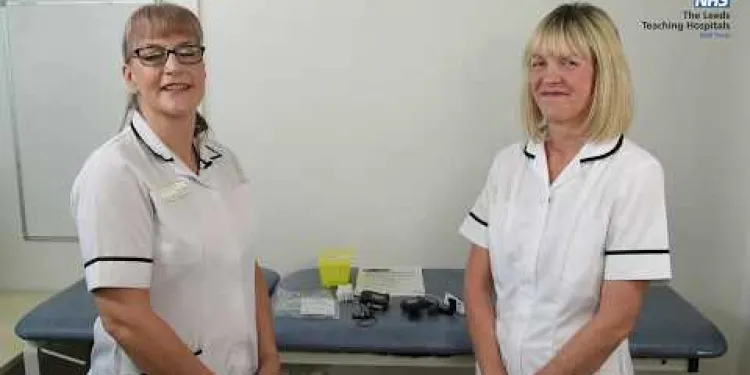
Instructions for setting up your home sleep study
Relevance: 54%
-
How important is software updating for phone security?
Relevance: 53%
-
Can I set up direct debits with Monzo or Revolut?
Relevance: 52%
-
Why is it important to secure my mobile phone?
Relevance: 51%
-
How do I know if a bank is insured and secure?
Relevance: 50%
-
How do Monzo and Revolut keep their apps secure?
Relevance: 49%
-

Who sets the energy price cap?
Relevance: 49%
-
Can I ask my neighbour to reposition their security camera?
Relevance: 48%
-
What are the security features of the digital driving license?
Relevance: 48%
-

Can grooming happen in real-life settings, not just online?
Relevance: 47%
-
What can I do about my neighbour's security camera?
Relevance: 47%
-
What can I do about my neighbour's security camera?
Relevance: 46%
-
Is it legal for me to block the view of my neighbour's security camera?
Relevance: 46%
-
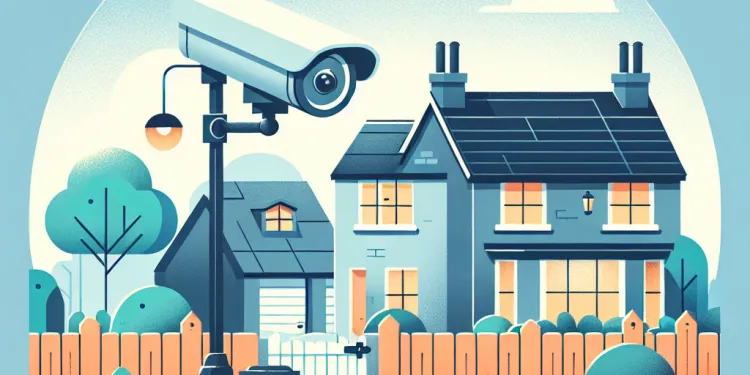
Can my neighbour legally point a security camera at my property?
Relevance: 46%
-
What is Social Security and how can seniors benefit from it?
Relevance: 45%
-

How can I tell if a security camera is pointing at my property?
Relevance: 45%
-
UK Banks Strengthen Security Measures Amid Rise in Online Scams
Relevance: 45%
-
How do seniors qualify for Supplemental Security Income (SSI)?
Relevance: 45%
-
Is it legal for my neighbor to have a security camera facing my property?
Relevance: 43%
-
What steps can I take if my neighbour refuses to reposition their security camera?
Relevance: 41%
-
Why people take out Secured Loans and why do some brokers charge so much
Relevance: 41%
-
How can I stop my neighbour's security camera pointing at my property?
Relevance: 41%
-
What should I do first if my neighbor's security camera is pointed at my property?
Relevance: 40%
Device Security Settings
Ensure your operating system is up to date. These updates often include crucial security patches.
Review your device’s firewall settings. A properly configured firewall adds an extra layer of protection.
Check the security settings of your antivirus software. Ensure it's scanning regularly and updating its virus definitions.
Account Password Management
Use strong and unique passwords for all accounts. Consider using a password manager to keep track of them.
Regularly update your passwords and avoid reusing them across different services.
Enable two-factor authentication where possible. This adds an extra layer of security to your accounts.
Privacy Settings on Social Media
Review who can see your information and posts. Limit this to friends or trusted contacts only.
Check the apps and services connected to your social media accounts. Revoke access to those you no longer use.
Be cautious about sharing personal information online. Restrict access to sensitive data where possible.
Email Security Settings
Enable spam filters to reduce the risk of phishing attacks. Many email providers offer robust filtering options.
Regularly review email forwarding settings. Ensure your emails are not being forwarded without your knowledge.
Be wary of suspicious attachments and links. Always verify the source before clicking.
Network Security Settings
Secure your home Wi-Fi with a strong password. Change the default password on your router if you haven't already.
Consider using a VPN, especially when connecting to public Wi-Fi. This encrypts your internet connection and enhances privacy.
Disable remote access features on your router unless they are necessary. This reduces potential entry points for attackers.
Mobile Device Settings
Ensure your phone has screen lock enabled, such as a PIN, password, or biometric lock.
Review app permissions regularly. Revoke unnecessary permissions that apps may have acquired over time.
Keep your mobile operating system and apps updated. Updates often address security vulnerabilities.
Frequently Asked Questions
Why is it important to regularly review security settings?
Regularly reviewing security settings ensures that your accounts and devices are protected against the latest threats and vulnerabilities.
What are some basic security settings I should check on my computer?
Check your firewall settings, antivirus status, and ensure your operating system is up to date.
What privacy settings should I review on my social media accounts?
Review who can see your posts, your profile information visibility, and the permissions granted to third-party apps.
How often should I update my passwords?
It's recommended to update your passwords every few months or immediately if you suspect a security breach.
What settings should I review on my router for better security?
Check for firmware updates, change the default admin password, and enable network encryption (WPA3 if available).
How can I enhance the security of my smartphone?
Enable a strong passcode or biometric authentication, update your OS regularly, and review app permissions.
What should I do to secure my email account?
Enable two-factor authentication, use a strong and unique password, and regularly review account activity and connected apps.
What are critical security settings in cloud services?
Ensure data encryption, review access permissions, and monitor for unusual activity.
Why is two-factor authentication important?
Two-factor authentication adds an extra layer of security, making it harder for attackers to access your accounts, even if they have your password.
How can I secure my online banking account?
Use two-factor authentication, a strong password, and monitor your account for unauthorized transactions.
What security measures should be taken for online shopping accounts?
Use secure connections (HTTPS), check site reviews, and ensure payment methods are reputable. Avoid saving payment info whenever possible.
What browser settings can enhance my online security?
Enable pop-up blockers, use a secure password manager, and review privacy settings to block tracking cookies.
Why should I regularly update my software and apps?
Updates often contain patches for security vulnerabilities that have been discovered since the last release.
What steps should I take to protect my data while using public Wi-Fi?
Use a VPN, ensure your firewall is active, and avoid accessing sensitive accounts or information.
How can I manage permissions for third-party apps?
Regularly review and adjust app permissions in your device settings and revoke access for apps you no longer use or trust.
What settings can prevent phishing attacks?
Enable email filters that mark suspicious emails as spam and educate yourself on recognizing phishing attempts.
How do I secure my IoT devices?
Change default passwords, keep firmware updated, and segregate IoT devices on a separate network if possible.
Why should I disable unnecessary services and features?
Disabling services and features you don't use reduces potential entry points for attackers.
How does encryption protect my data?
Encryption converts your data into a coded format that can only be read by someone who has the encryption key, protecting it from unauthorized access.
What should I do if I suspect a security breach?
Immediately change passwords, enable two-factor authentication, and monitor your accounts and devices for unusual activity.

Useful Links
This website offers general information and is not a substitute for professional advice.
Always seek guidance from qualified professionals.
If you have any medical concerns or need urgent help, contact a healthcare professional or emergency services immediately.
- Ergsy carfully checks the information in the videos we provide here.
- Videos shown by Youtube after a video has completed, have NOT been reviewed by ERGSY.
- To view, click the arrow in centre of video.
- Most of the videos you find here will have subtitles and/or closed captions available.
- You may need to turn these on, and choose your preferred language.
- Go to the video you'd like to watch.
- If closed captions (CC) are available, settings will be visible on the bottom right of the video player.
- To turn on Captions, click settings .
- To turn off Captions, click settings again.
More Items From Ergsy search
-
What settings should I regularly review for security?
Relevance: 100%
-
What is the first step to securing my mobile phone?
Relevance: 64%
-
How secure is the Ring Doorbell Camera system?
Relevance: 61%
-
How should I secure my mobile phone?
Relevance: 61%
-
How to set up your CPAP machine
Relevance: 60%
-
Is redirecting a security camera a solution?
Relevance: 60%
-
Are there any tools provided by social media platforms to increase security?
Relevance: 58%
-
How do I secure my online accounts?
Relevance: 58%
-
Frozen Shoulder Scapular Setting
Relevance: 58%
-
Can drink spiking occur in private settings?
Relevance: 57%
-
How to Set Up a Lasting Power of Attorney
Relevance: 57%
-
How can I secure sensitive data stored on my phone?
Relevance: 57%
-
How can I secure my email after a hack?
Relevance: 55%
-
How can I secure my phone's internet connection?
Relevance: 55%
-
Will changing my password secure my hacked account?
Relevance: 55%
-
Is job security a right for gig workers?
Relevance: 55%
-
How can I keep my apps secure?
Relevance: 55%
-
Instructions for setting up your home sleep study
Relevance: 54%
-
How important is software updating for phone security?
Relevance: 53%
-
Can I set up direct debits with Monzo or Revolut?
Relevance: 52%
-
Why is it important to secure my mobile phone?
Relevance: 51%
-
How do I know if a bank is insured and secure?
Relevance: 50%
-
How do Monzo and Revolut keep their apps secure?
Relevance: 49%
-
Who sets the energy price cap?
Relevance: 49%
-
Can I ask my neighbour to reposition their security camera?
Relevance: 48%
-
What are the security features of the digital driving license?
Relevance: 48%
-
Can grooming happen in real-life settings, not just online?
Relevance: 47%
-
What can I do about my neighbour's security camera?
Relevance: 47%
-
What can I do about my neighbour's security camera?
Relevance: 46%
-
Is it legal for me to block the view of my neighbour's security camera?
Relevance: 46%
-
Can my neighbour legally point a security camera at my property?
Relevance: 46%
-
What is Social Security and how can seniors benefit from it?
Relevance: 45%
-
How can I tell if a security camera is pointing at my property?
Relevance: 45%
-
UK Banks Strengthen Security Measures Amid Rise in Online Scams
Relevance: 45%
-
How do seniors qualify for Supplemental Security Income (SSI)?
Relevance: 45%
-
Is it legal for my neighbor to have a security camera facing my property?
Relevance: 43%
-
What steps can I take if my neighbour refuses to reposition their security camera?
Relevance: 41%
-
Why people take out Secured Loans and why do some brokers charge so much
Relevance: 41%
-
How can I stop my neighbour's security camera pointing at my property?
Relevance: 41%
-
What should I do first if my neighbor's security camera is pointed at my property?
Relevance: 40%